
Use a custom preset, preserve the settings that help you read the battlefield, then lower the options that create unstable frame time. Change one setting at a time and test it in the same scenario; a number from another PC is a starting point, not your final answer.
Measure your baseline before changing settings
Start with the same resolution, map area and type of fight for every test. Write down the frame rate range, how the game feels while turning and whether explosions or dense terrain create hitching. A repeatable comparison is more useful than a single high number in an empty scene.
Keep drivers, Windows updates and background programs in mind while testing. If several things change at once, you cannot tell whether a new setting, a driver change or a background process caused the improvement.
Build a visibility-first custom preset
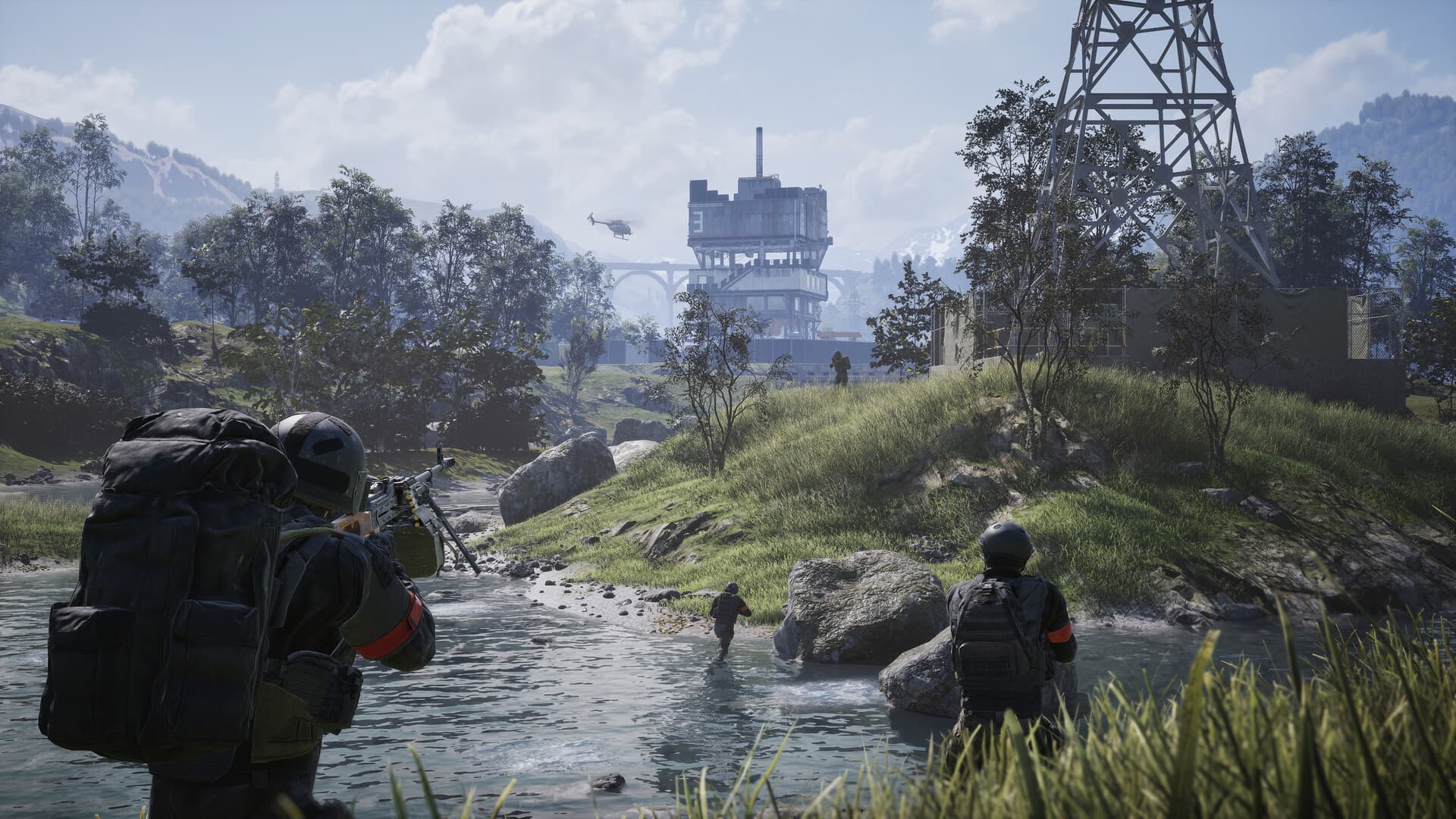
Start from a custom preset instead of assuming Low, High or Ultra is best. Keep the settings that make distant movement and terrain readable, then reduce effects that obscure the screen or add a heavy frame-time cost on your hardware.
Avoid chasing visual sharpness at the cost of a noisy image. Check a familiar sight line after every change: can you still read player movement, cover edges and the route your squad needs to use?
Prioritize stable frame time over a peak FPS number
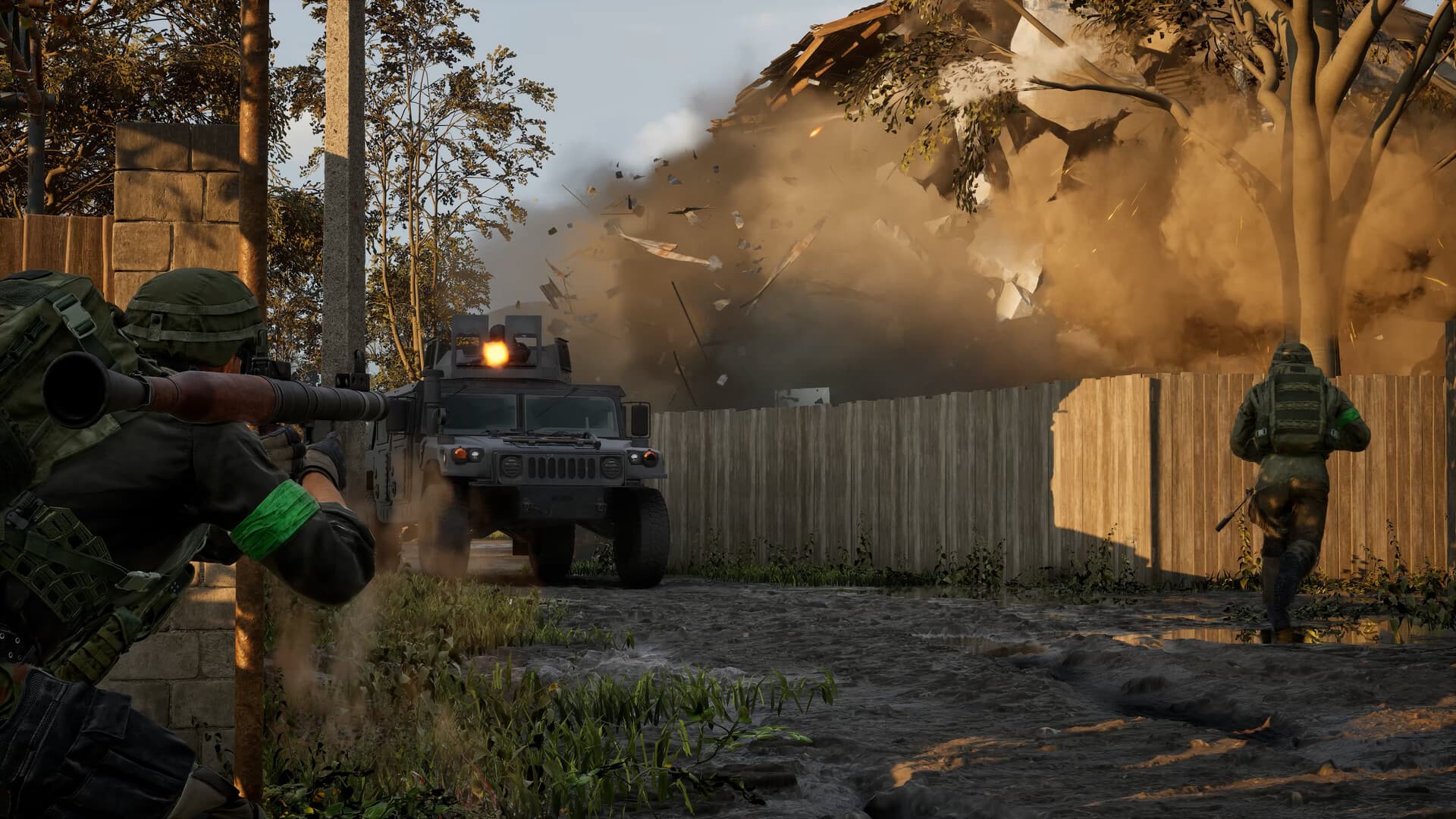
A high peak frame rate does not help much if the game stutters whenever vehicles, smoke or a busy objective enter view. Lower one demanding group at a time, test again, and stop when the slowest moments become predictable enough to aim and move cleanly.
Frame caps, sync options and upscaling can all change how a game feels. Try them deliberately with your monitor's refresh rate in mind. If a setting improves the displayed FPS but makes input feel worse, keep the option that gives you the more controllable fight.
Tune display and input without changing everything at once
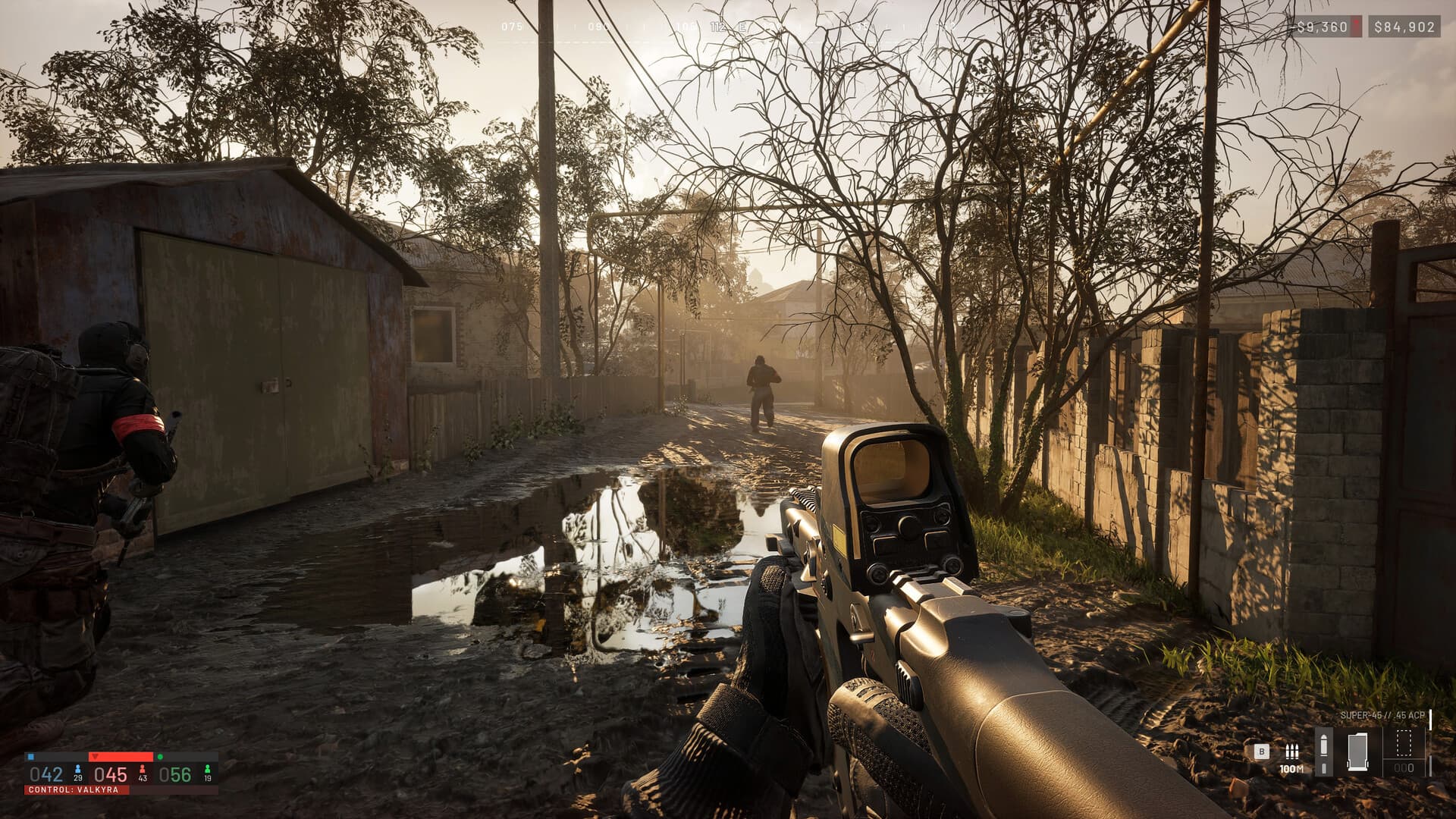
Set your display mode, resolution and field of view first. Then tune mouse or controller sensitivity in a low-pressure space before judging it in a match. Large setting changes at the same time can make aim feel unfamiliar even when performance improves.
For controller play, test dead zones and each axis separately. For mouse input, make sure the sensitivity allows a quick turn without making a small correction impossible. Use the same short drill before deciding whether a change helped.
Use a safe troubleshooting order for stutter or crashes
If performance suddenly drops, first return any experimental graphics change to the previous working value. Then close nonessential overlays and recording tools, verify the game installation through Steam and restart the PC before making deeper changes.
Do not combine a graphics tuning session with operating-system changes, driver cleanup or launch-error fixes. Treat those as separate problems so you can undo one step without losing a known-good settings profile.
Keep a settings note after every major update
Save your preferred display, graphics and input values after a stable session. A patch, driver update or reset can make it hard to remember which combination worked, especially if you were changing settings during a problem.
Re-test only the settings affected by the update. A working configuration does not need to be rebuilt from zero just because a new version arrives.
Check after an update
WARDOGS is in Early Access, so prices, item details and balance can move between updates. These guides focus on practical decisions; check the current game build before you commit to an expensive purchase or a system-level PC change.
Frequently asked questions
What are the best WARDOGS settings?
The best settings are the ones that keep your frame time stable and the battlefield readable on your own PC. Start with a custom preset and test one change at a time in the same scenario.
Should I use a frame cap?
Test a frame cap against your monitor refresh rate and choose the option that keeps input and frame pacing consistent during busy fights.
Why did WARDOGS start stuttering after an update?
Return recent experimental changes first, then check background software and verify the installation. Keep driver, operating-system and graphics changes separate so the cause stays clear.